
ScopeCam 2 4K
Browse available support questions and troubleshooting guidance for ScopeCam 2 4K.
Frequently Asked Questions
Still need help?
Send the support team your camera model, firmware version and a description of the indicator lights.
The ScopeCam 2 4K can connect to the RunCam Legacy app on mobile devices via Wi-Fi.
How to Enable Wi-Fi on the ScopeCam 2 4K
There are two ways to enable Wi-Fi:
-
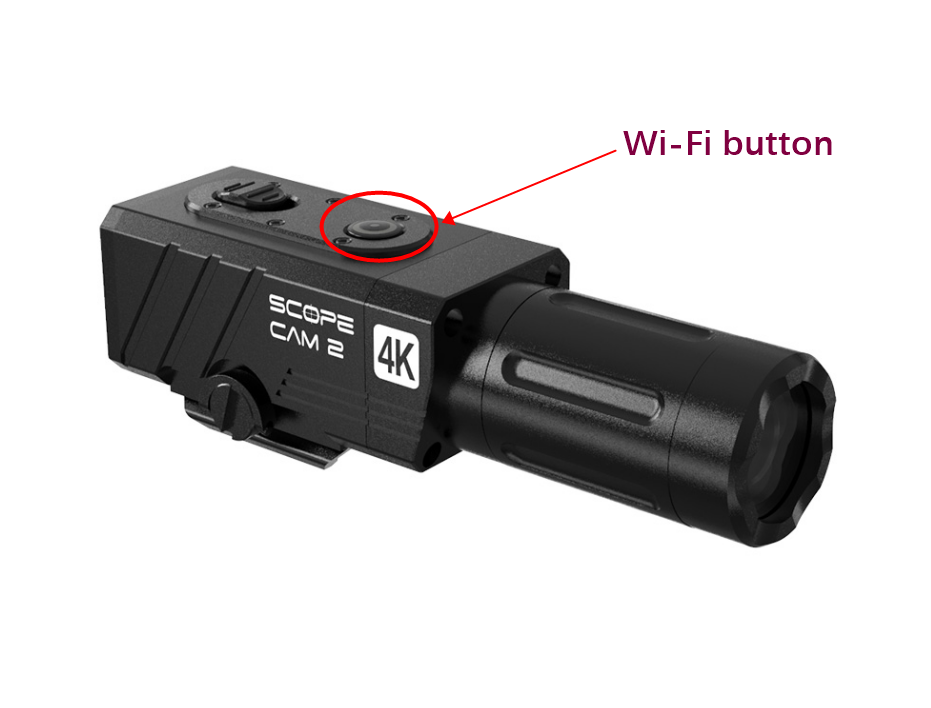
Power-on with Wi-Fi button
Press and hold the Wi-Fi button only to power on the camera. Wi-Fi will be enabled automatically. -
Enable Wi-Fi after power-on
Power on the camera first, then press and hold the Wi-Fi button until the camera responds. Wi-Fi will be enabled shortly.
Wi-Fi Indicator Status
Once Wi-Fi is enabled:
-
microSD card inserted:
The Wi-Fi button light will blink purple and red alternately. -
microSD card not detected / SD card issue:
The light will blink blue, red, and purple alternately, indicating both Wi-Fi standby and an SD card issue.
Connecting to the Camera
- Open the Wi-Fi settings on your mobile device.
- Locate and connect to the camera’s Wi-Fi network.
-
Default Wi-Fi password:
1234567890 - After connecting to Wi-Fi, open the app (RunCam Legacy) and select the correct camera model to proceed.
Important: App Compatibility
There are two RunCam apps available:
- RunCam App (Orange icon) – newly released, for newer camera models
- RunCam Legacy (White icon) – previously named RunCam App

⚠️ ScopeCam 2 4K is only compatible with RunCam Legacy (White icon). Our digital manuals will be updated accordingly to reflect this change.
RunCam Legacy Download Links
-
iOS:
https://apps.apple.com/us/app/runcam-legacy/id1015312292?l=en -
Android:
https://play.google.com/store/apps/details?id=com.runcam.runcam2
Connection Tips (Recommended)
When connecting a RunCam camera to RunCam Legacy, we recommend:
- Disabling mobile data / cellular service
- Turning off any VPN
- Allowing the app access to your phone’s location and local network
These steps help ensure the video feed displays properly.
If you have any questions or encounter any issues, please feel free to contact us.
With the default picatinny rail adapter, ScopeCam 2, ScopeCam 2S and ScopeCam 2 4K supports different mounting positions:
① On the side
② On the top
③ Underneath

When mounting the camera on the side of airsoft gun, rotating the lens module can help obtain a normal/horizontal recording view.
Demonstration video:
When disassembling and reassembling, please handle the cable with care to avoid any potential damage.
With a microSD card inserted in, ScopeCam 2/ScopeCam 2 4K will record normally after powering on, and the light on both Wi-Fi button and charging indicator will be slowly blinking red.
If the camera doesn't record after powering on, and it only has solid red lights on both Wi-Fi button and charging indicator, please follow the steps below to check and solve the problem.
(Notice: the light on Wi-Fi button may be fast flashing purple after staying on red for a while)
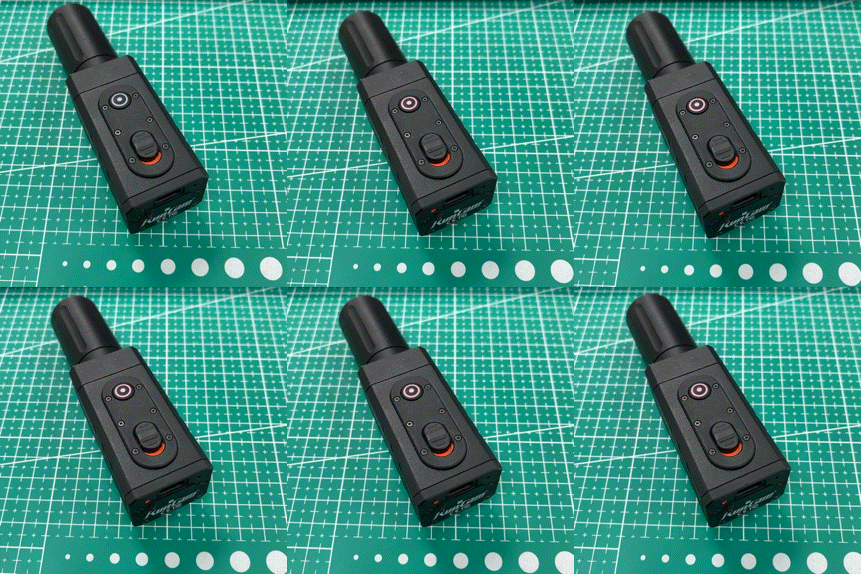
It is possible for the camera to respond abnormally when it has a program error, or it cannot detect a lens module, and we recommend checking the connecting cable inside.
Here are the steps to reset the camera:
(1) slide the switch to "off"
(2) long press the Wi-Fi button only to power off the camera
(3) long press the Wi-Fi button again to power on the camera
Please check if the response of camera differs after resetting.
Here are the steps to check the lens module:
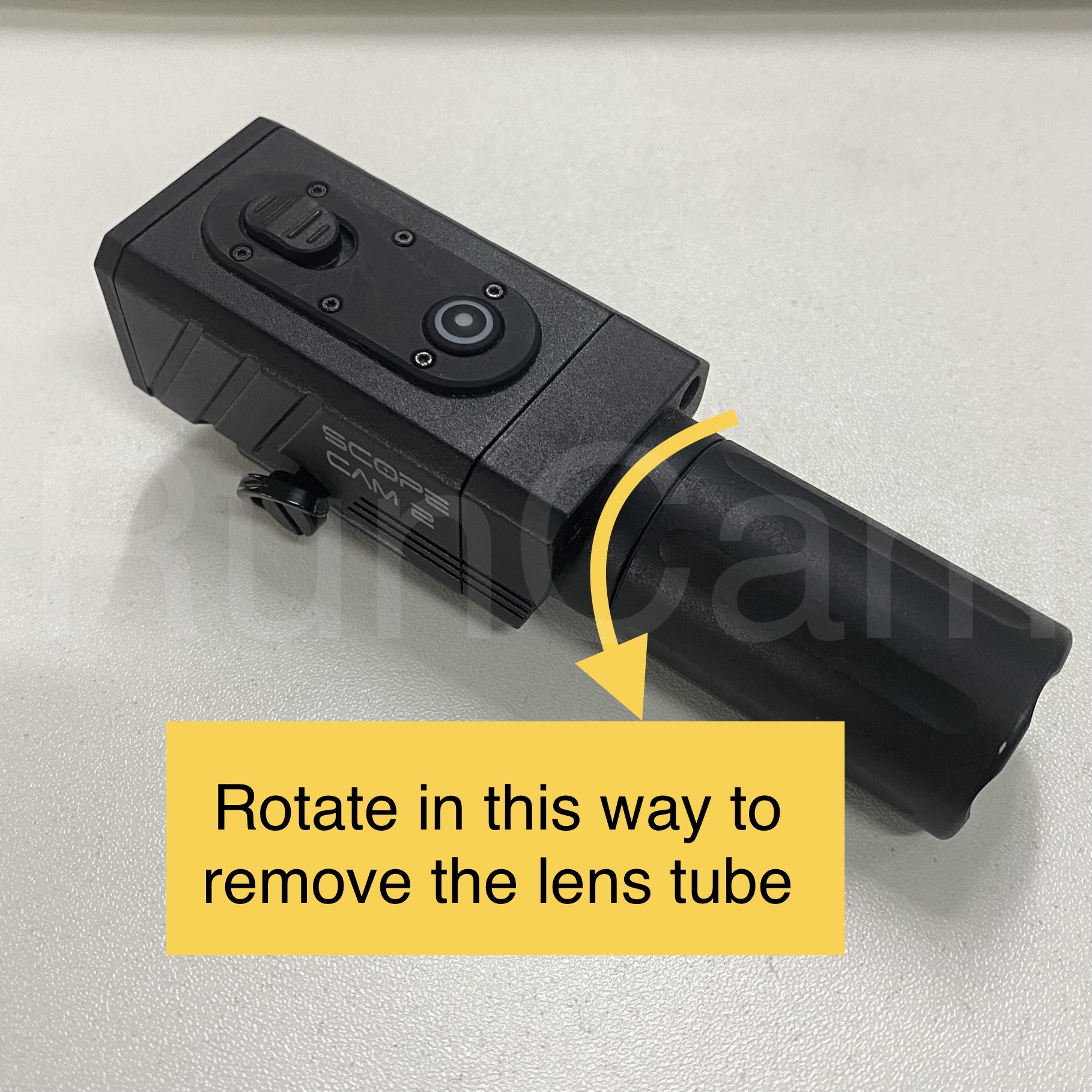
(1) remove the outer lens tube/casing
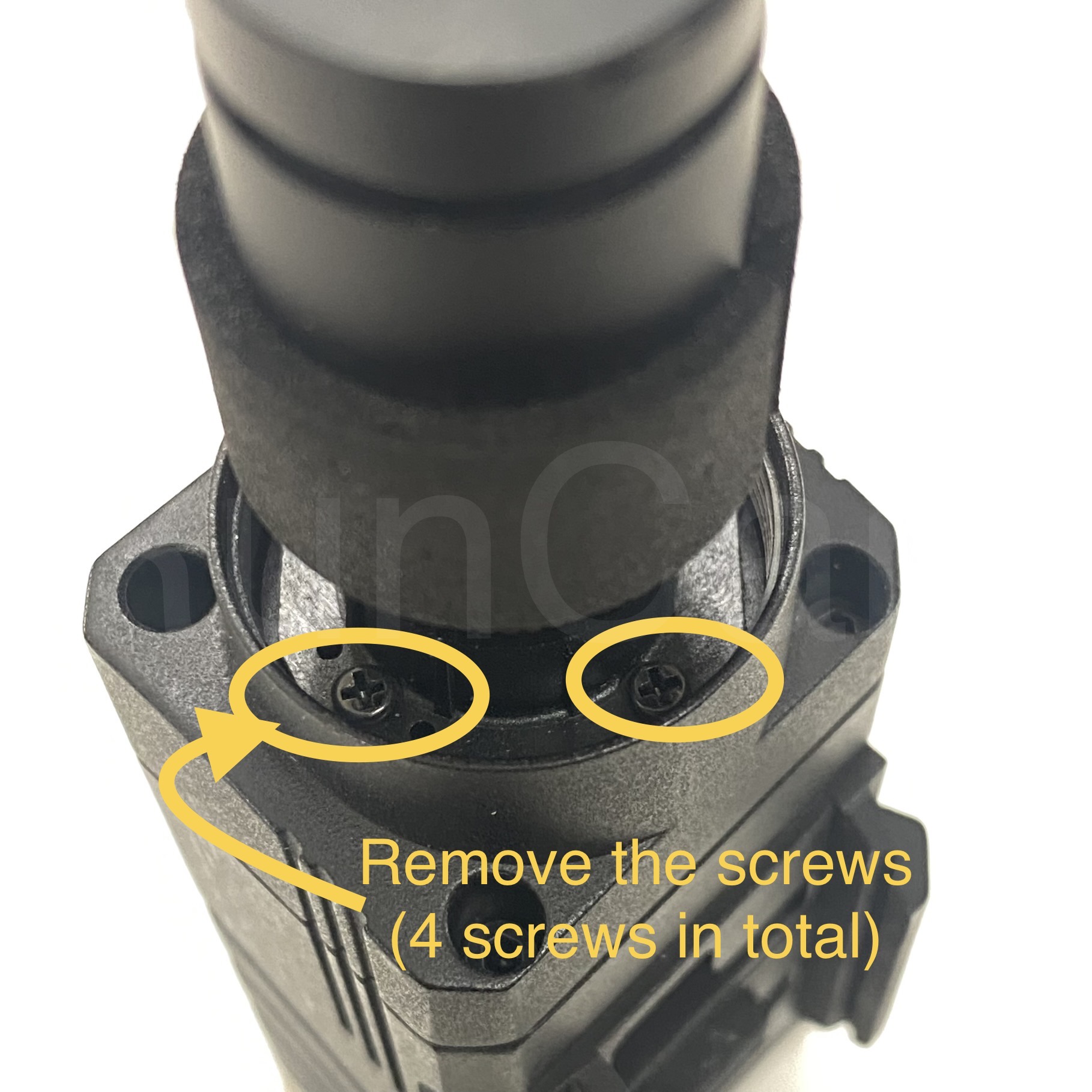
(2) remove the screws around the lens (4 in total)
(3) check the connecting cable inside to see if it gets connected properly, and check if each wire looks good
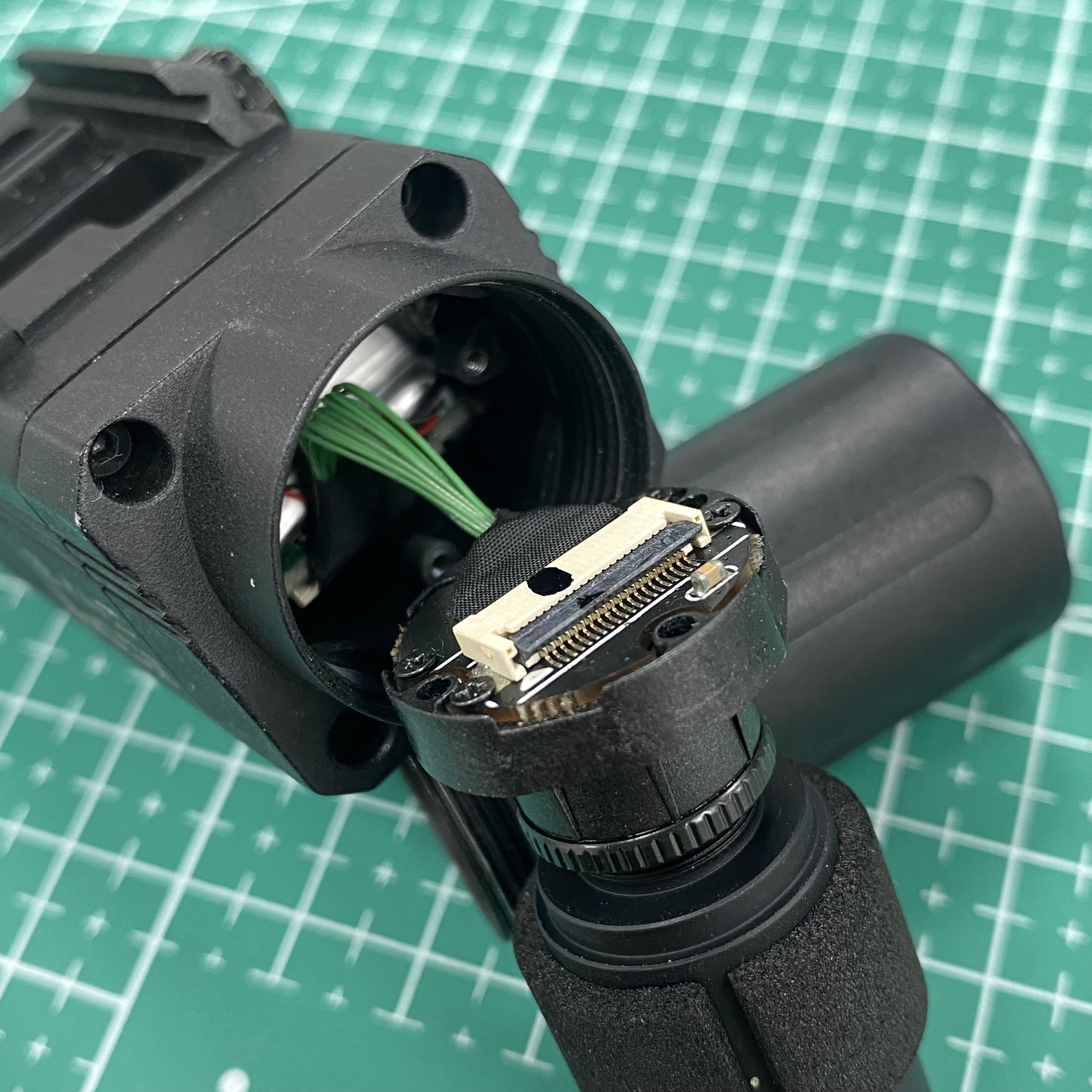
If the cable gets damaged, you can reach out to our product support to purchase a cable replacement.
Email: run@runcam.com
If ScopeCam 2 4K seems bricked after updating firmware, please try to solve it by referring to the following steps:
-
Format the used micro-SD card to exFAT or FAT 32 (Samsung U3 card
highly recommended)

- Download and copy the SC024K.BRN file to card directly, without putting it into any folder
- Charge the camera for at least half an hour (green led should be on)
- With SD card inserted, power the camera via USB cable and a mobile charger, long pressing the Wi-Fi button for about 20 seconds till it gets turned on
ScopeCam 2 4K has the flashback function, and using the flashback
cable could help shoot moments.
It could be regarded as a capturing function, and this article is telling how to capture via using the flashback cable.
Note: Flashback function is only available when using the flashback cable to control.
To have flashback videos, there are 2 things to be confirmed before shooting:
1.Firmware of Camera
Please make sure that the firmware of ScopeCam 2 4K is at least V1.0.6. Otherwise, the camera will not record the flashback videos.
Note: Latest firmware version is V1.1.0 (updated in 2025)
Here is the link for updating firmware via SD card. Please make sure the firmware file is to be copied to the SD card directly without being put into any folder or changed the file name. Camera will detect the firmware for updating automatically.
https://www.runcam.com/download/scopecam24k
2.Flashback function
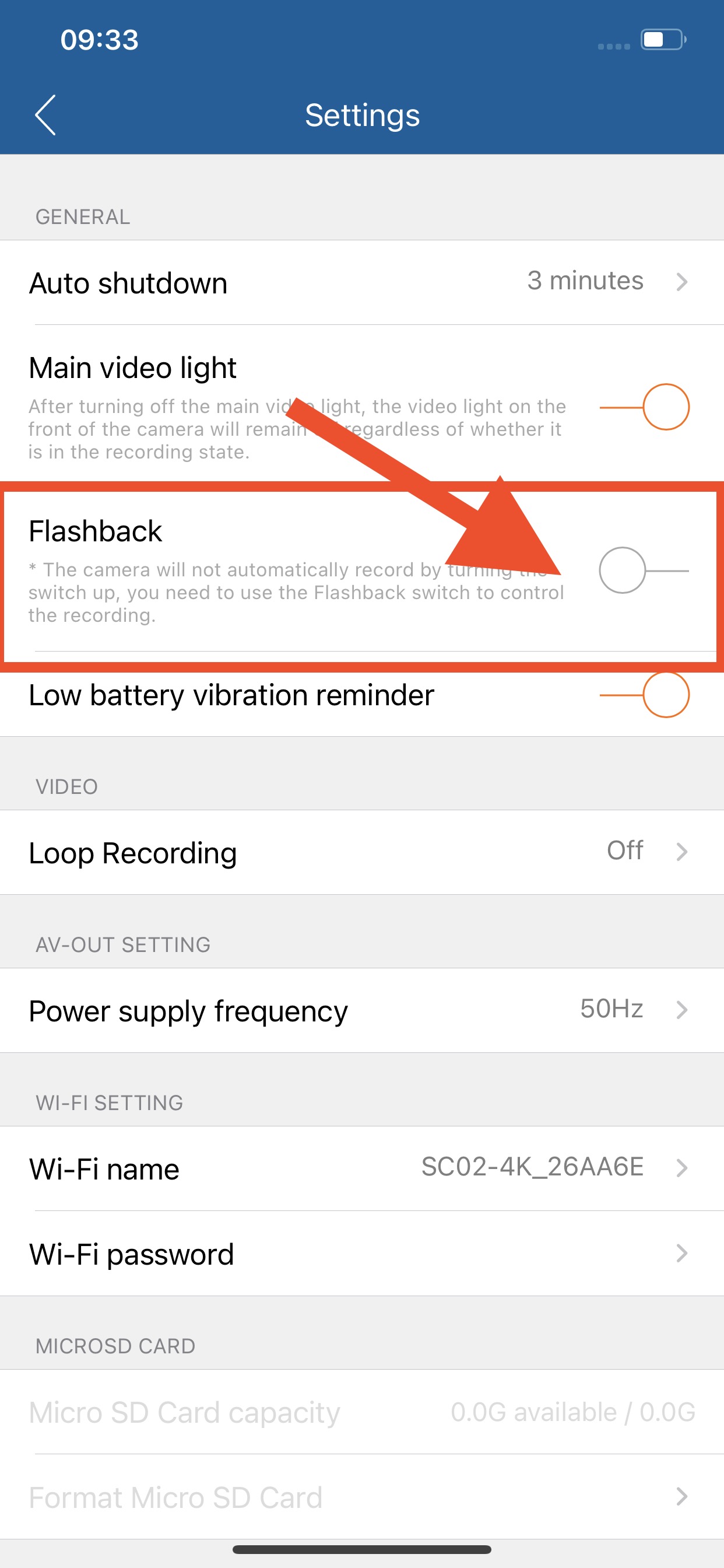
The Flashback function needs to be turned on before using because it is turned off by default.
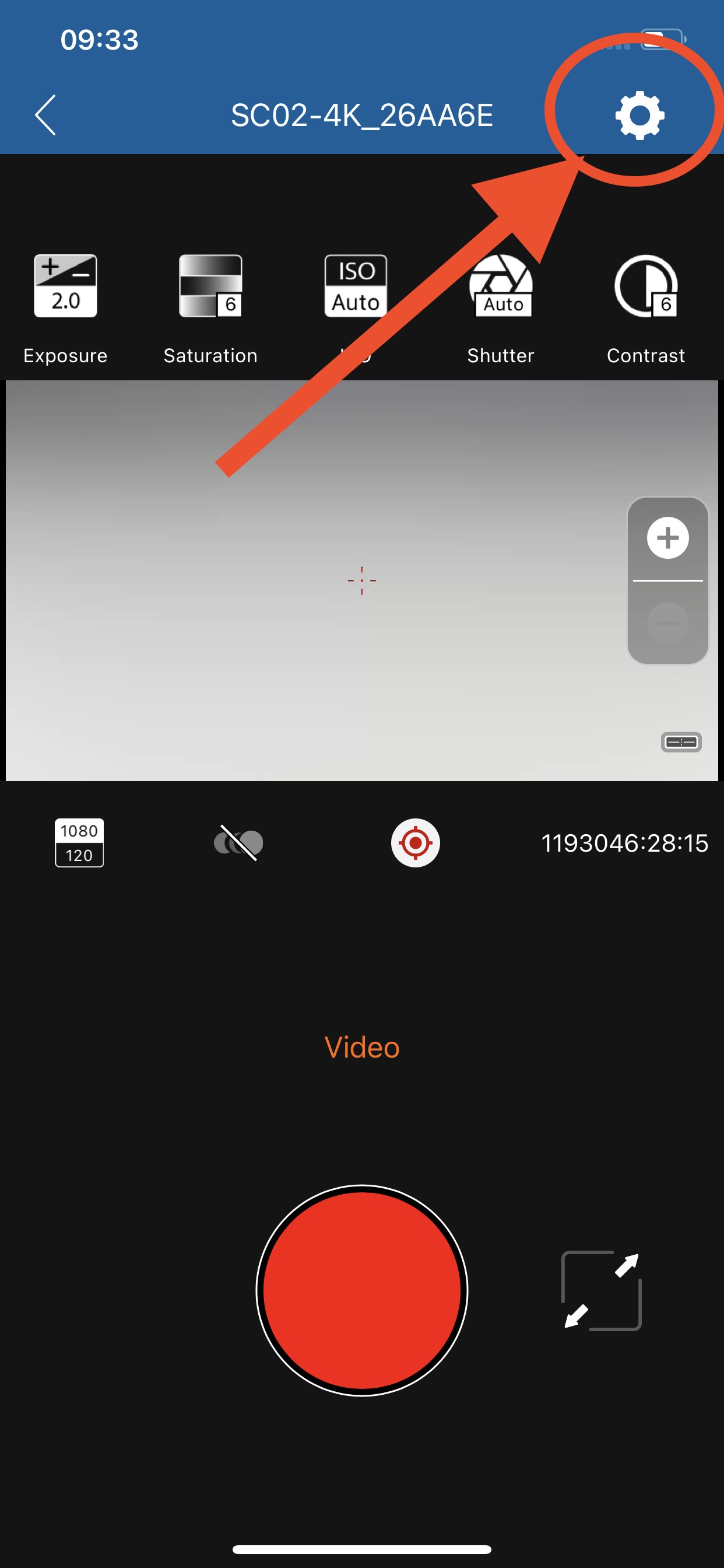
For turning on, connecting the camera to RunCam App via Wi-Fi, and then go to detailed settings to turn on the flashback function.

For moment capturing, the flashback video contains 2 parts: one part is recorded before pressing the button of cable, and the other part is recorded after pressing.
Here are the details of recording time for flashback videos:
| Resolution | 1080P@50FPS | 1080P@60FPS | 1080P@100FPS | 1080P@120FPS | 2.7K@60FPS | 4K@30FPS |
| Former recording time | 15 seconds | 15 seconds | 10 seconds | 10 seconds | 5 seconds | 3 seconds |
| Latter recording time | 15 seconds | 15 seconds | 15 seconds | 15 seconds | 15 seconds | 15 seconds |
| Total recording time | 30 seconds | 30 seconds | 25 seconds | 25 seconds | 20 seconds | 18 seconds |
When the flashback function is turned on via RunCam App, you need to select a proper resolution. After powering on ScopeCam 2 4K, camera won't start recording by default, and please use the flashback cable with the camera. Press the button on the flashback cable, the camera will start recording.
Without turning on flashback function, the flashback-cable could be used as a switch to control recording. It means that user could start and stop recording at any time by pressing the button of flashback cable.