RunCam 6
Browse available support questions and troubleshooting guidance for RunCam 6.
Frequently Asked Questions
Still need help?
Send the support team your camera model, firmware version and a description of the indicator lights.
When powering the RunCam 6 via a Type-C cable without using the internal battery, the camera may randomly pause or switch modes if the cable is moved.
To resolve these abnormal behaviors, there are two possible solutions:
- Shorten the cable to reduce movement.
-
Connect the white PWM wire to the black ground (GND) wire.
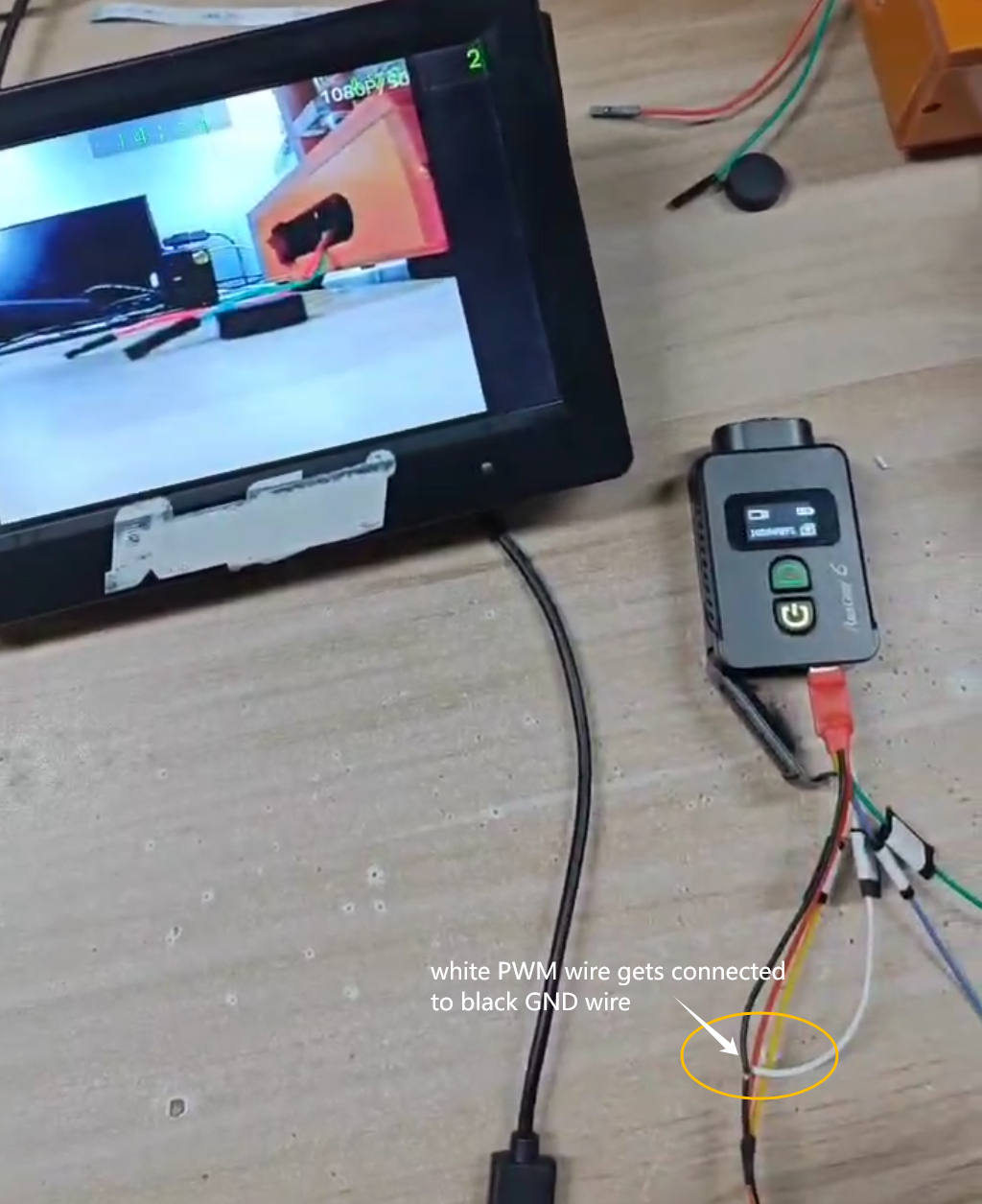
Here is a demo video showing the camera functioning normally after connecting the white PWM wire to the black GND wire:
https://drive.google.com/file/d/1E-EE2wzVoXEl7YvmKnX4QZ7OW0FC1Nn8/view?usp=sharing
When RunCam 6 doesn't work properly, please try flashing the firmware via computer when the card method doesn't work.
Please try the steps below to flash the firmware via computer, and please remove a microSD card and battery from the camera before flashing the firmware.
1.Install icatch drive to computer or laptop https://runcam.zendesk.com/attachments/token/vDErTSW4RgCokgRQ3DNHTxASA/?name=icatch_v3000_For_V37_V50_V35_V33_K33.7z
Download the attached runcam6-f.7z, and extract to get the download folder. (Find this at the last part of this article)
2. Keeping press the WiFi button of RunCam 6, use a USB-C cable to
connect it to a computer.
Green light will be on at the power/shutter button, and the display screen will not be on at this time.
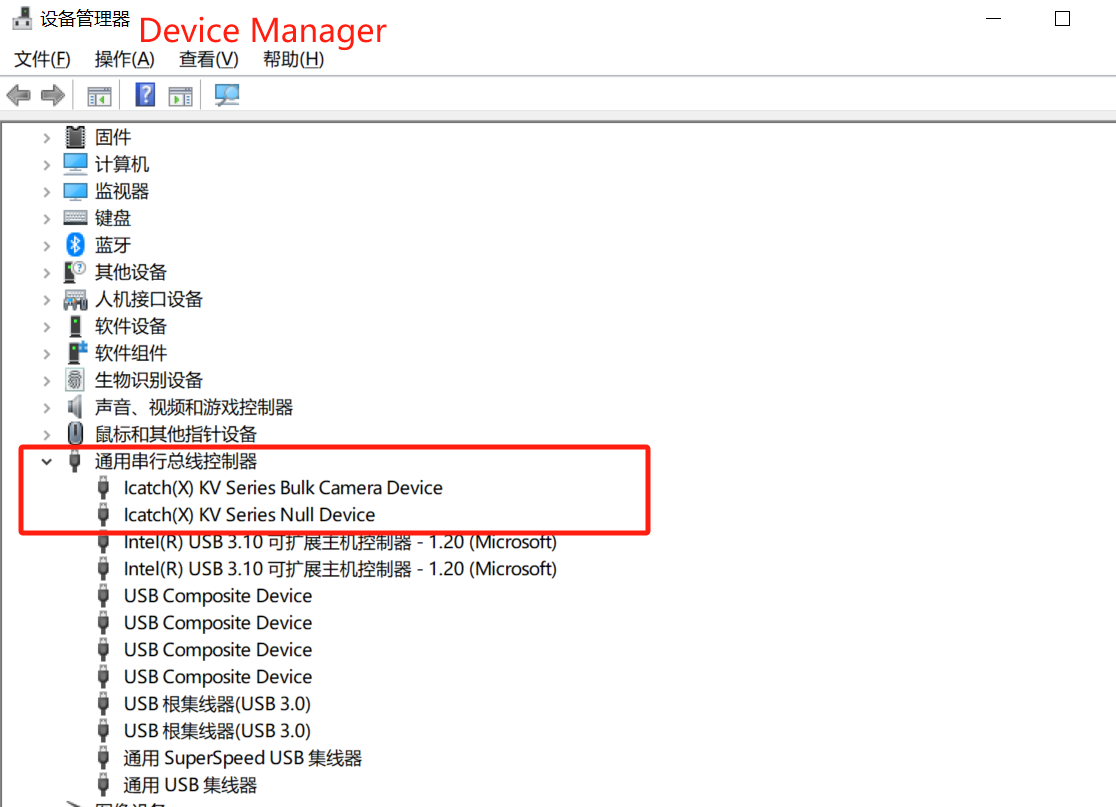
You can confirm a successful detection when seeing two icatch devices at Device Manager:
3. Go to the download folder from runcam6-f.7z, and click FRM.exe to
proceed with flashing.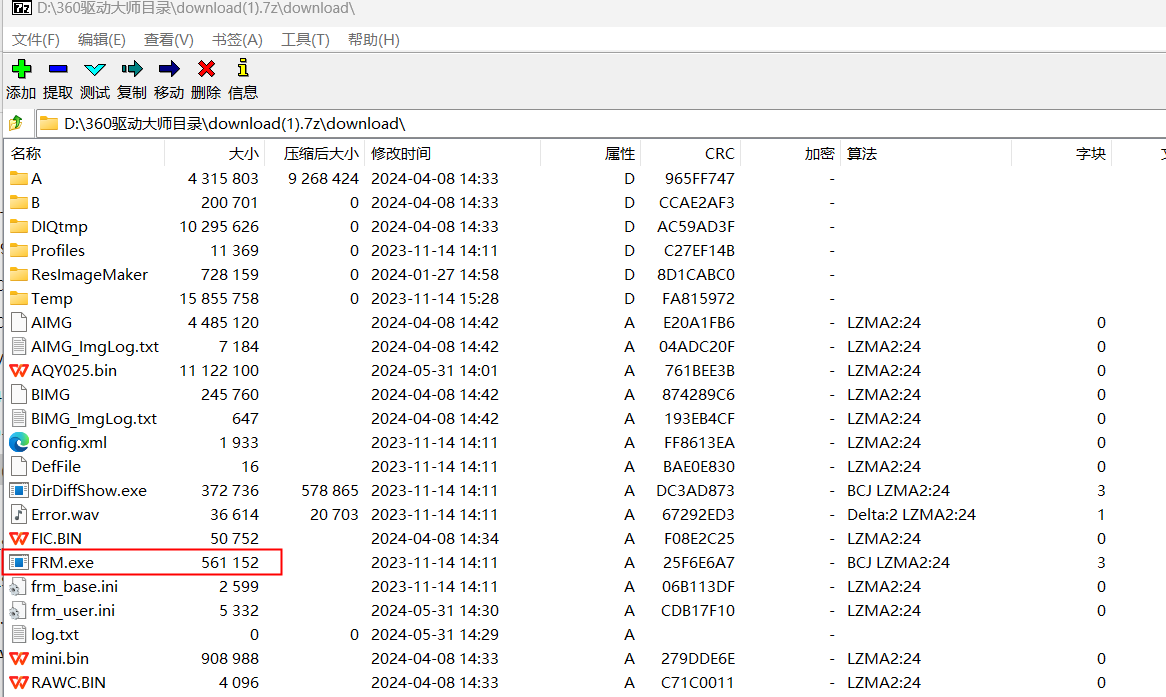
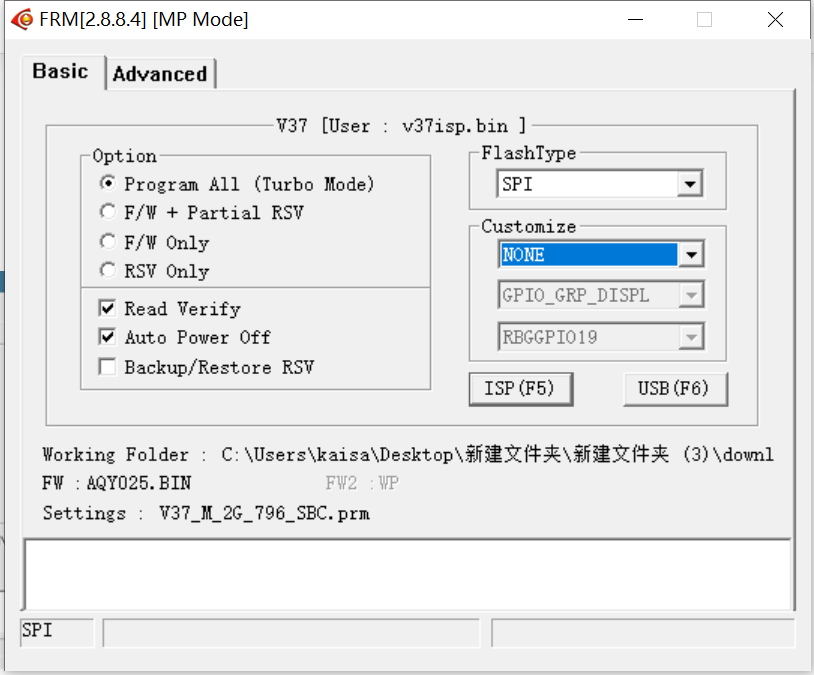
Please follow the options selected in the picture below, and then click ISP(F5) to start.
It will take about 2 to 3 minutes for the camera to finish the flashing.