
Please follow the steps below to flash the firmware of camera via a computer:
It can be done when the camera is turned off, and please remove a microSD card from the camera before flashing.
1.Dowloand and install this drive to your computer:
https://runcam.zendesk.com/attachments/token/vDErTSW4RgCokgRQ3DNHTxASA/?name=icatch_v3000_For_V37_V50_V35_V33_K33.7z
2.Take a USB cable, plug the microUSB connector to the camera
first.
Keeping pressing the reset button on the camera, plug the USB-A connector to the computer USB port. When you see two devices listed in device manager as showed below, a recognition is successful.
Otherwise, please repeat the operations to connect again.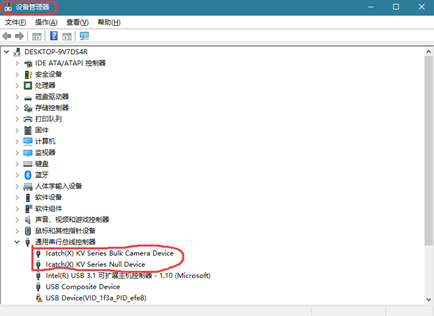
3. Download and extract the
attachment file
downloadV1.2.3.zip.
Find FRM program and execute it.

Select the settings et as we showed in below screenshot and click ISP to start flashing.

It will take a few minutes to flash.
When the program displays "ISP finished", the firmware flashing is
completed.
4.If it appears that like "Program All Error!" please disconnect the camera from your computer, and repeat the steps to try flashing again.
Here is a demo video for reference: https://youtu.be/4VdDv0KvTCk